Entity Component System
Everything in a PlayCanvas scene is an entity: the camera that views it, the lights that light it, every model, sound and piece of UI, and the objects of your game. On its own, an entity is a named point in space, with a position, a rotation and a scale, and a place in a hierarchy of other entities. Components give it abilities. A camera component makes it a camera, a render component draws a mesh at its position, a rigidbody component hands it to the physics engine, and a script component runs your own code on it. For each type of component, the application has one system that runs every component of that type.
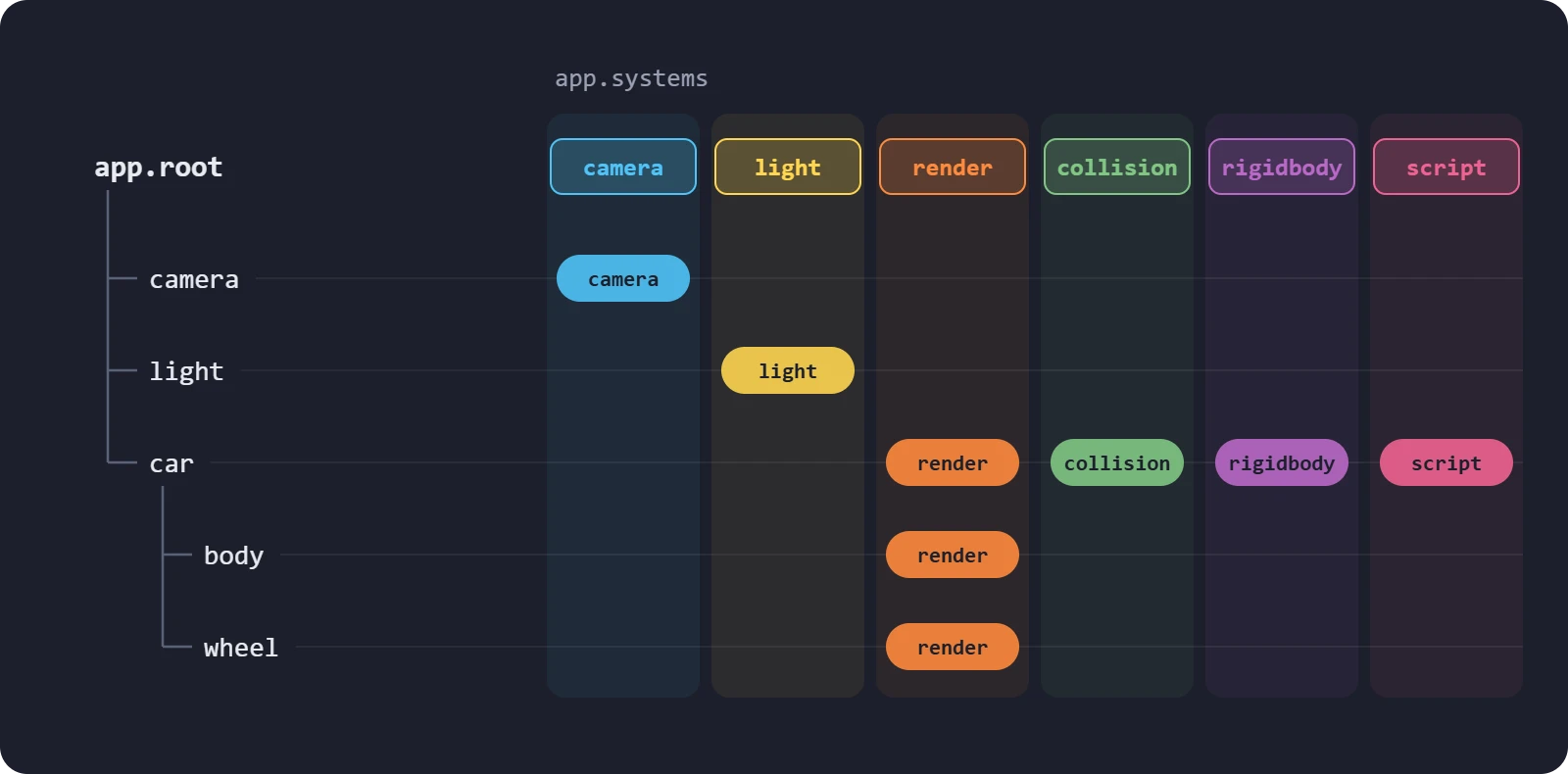
This pattern is called an Entity Component System, or ECS. You use it however you build: the Editor, React and Web Components all create the same entities and components as code written against the engine. Each page in this section explains a concept once and then shows how to apply it on each of those surfaces.
Entities
An entity is an object of the Entity class. It has a name and tags, which you can use to find it, and an enabled state, which switches it on and off together with everything below it. Its position, rotation and scale are relative to its parent, so moving an entity moves its children with it.
The entities of a scene form a tree whose root is app.root. An entity joins the scene when you add it to that tree: until then, it is not drawn and its scripts do not run. See Hierarchy and Transforms.
Components
A component adds one ability to its entity, and holds the settings of that ability as properties, such as entity.light.color or entity.camera.fov. An entity has at most one component of each type. To give an object two lights, give it two child entities with a light each.
The engine has around twenty types of component, covering cameras, lights, rendering, sound, physics, animation, particles and user interface. You do not write new types of component for your own behavior. Instead, you write scripts, and the script component runs any number of them on its entity.
Systems
Each type of component has a system, a ComponentSystem that creates, updates and destroys every component of that type and holds the settings they share. You rarely need a system directly. One exception is shared settings: app.systems.rigidbody.gravity is the gravity that pulls on every rigid body, for example.
An application runs only the systems registered with it. pc.AppBase starts with none, so you list the ones you use and a bundler can leave the rest out of your build. pc.Application registers every built-in system, and so do the Editor, React and Web Components. See Component Systems.
If you come from Unity, entities are game objects and components are components: see Migrating from Unity. If you come from a data-oriented ECS, such as Unity's DOTS or Bevy, note that PlayCanvas entities are objects in a scene graph rather than plain identifiers, and that components keep both their data and their behavior.
One Scene, Four Ways
Here is a scene with three entities: a camera, a light and an orange box. The camera is raised and tilted down to look at the box, which is turned to show three of its sides.

- Engine
- Editor
- React
- Web Components
With an application set up as in Using the Engine Standalone, and the render, camera and light component systems registered:
const camera = new pc.Entity('camera');
camera.addComponent('camera', {
    clearColor: new pc.Color(0.11, 0.12, 0.17)
});
camera.setPosition(0, 1.1, 3.2);
camera.setEulerAngles(-20, 0, 0);
app.root.addChild(camera);

const light = new pc.Entity('light');
light.addComponent('light');
light.setEulerAngles(45, -30, 0);
app.root.addChild(light);

const material = new pc.StandardMaterial();
material.diffuse = new pc.Color(1, 0.55, 0.2);
material.update();

const box = new pc.Entity('box');
box.addComponent('render', { type: 'box', material: material });
box.setEulerAngles(0, 35, 0);
app.root.addChild(box);
- In the Hierarchy, select the Root entity, click + and choose Camera › Perspective. In the Inspector, set its Position to (0, 1.1, 3.2), its Rotation to (-20, 0, 0) and the camera component's Clear Color to a dark blue.
- Select Root again, click + and choose Light › Directional Light. Set its Rotation to (45, -30, 0).
- Select Root again, click + and choose 3D › Box. Set its Rotation to (0, 35, 0).
- To color the box, create a material with an orange Diffuse color and drag it from the Assets panel onto the box in the viewport.
Each of these menu items creates an entity that already has the component its name says. Any entity can be given more components with the Inspector's Add Component button.
import { Application, Entity } from '@playcanvas/react';
import { Camera, Light, Render } from '@playcanvas/react/components';
import { useMaterial } from '@playcanvas/react/hooks';

function Scene() {
  const orange = useMaterial({ diffuse: '#ff8c33' });

  return (
    <>
      <Entity name="camera" position={[0, 1.1, 3.2]} rotation={[-20, 0, 0]}>
        <Camera clearColor="#1c1f2b" />
      </Entity>
      <Entity name="light" rotation={[45, -30, 0]}>
        <Light type="directional" />
      </Entity>
      <Entity name="box" rotation={[0, 35, 0]}>
        <Render type="box" material={orange} />
      </Entity>
    </>
  );
}

export default function App() {
  return (
    <Application>
      <Scene />
    </Application>
  );
}
<pc-app>
    <pc-material id="orange" diffuse="#ff8c33"></pc-material>
    <pc-scene>
        <pc-entity name="camera" position="0 1.1 3.2" rotation="-20 0 0">
            <pc-camera clear-color="#1c1f2b"></pc-camera>
        </pc-entity>
        <pc-entity name="light" rotation="45 -30 0">
            <pc-light></pc-light>
        </pc-entity>
        <pc-entity name="box" rotation="0 35 0">
            <pc-render type="box" material="orange"></pc-render>
        </pc-entity>
    </pc-scene>
</pc-app>
Whichever way you build, the result is the same tree of entities under app.root, each with one component. The Editor, React and Web Components create these engine objects for you, and each gives you a way to reach them when you need to:
| Engine | Editor | React | Web Components | |
|---|---|---|---|---|
| An entity | new pc.Entity('box') | An item in the Hierarchy | <Entity name="box"> | <pc-entity name="box"> |
| Its place in the tree | parent.addChild(box) | Drag it onto its parent in the Hierarchy | Nest it inside its parent's <Entity> | Nest it inside its parent's <pc-entity> |
| A component | box.addComponent('render', { type: 'box' }) | Add Component in the Inspector | <Render type="box" /> inside the <Entity> | <pc-render type="box"> inside the <pc-entity> |
| A property | box.render.castShadows = false | A field in the Inspector | castShadows={false} | cast-shadows="false" |
| Your own behavior | box.addComponent('script').create(Spin) | A script in a Script component | <Script script={Spin} /> | <pc-script-instance name="spin"> in a <pc-script> |
| The engine entity, from your code | box | this.entity in a script on it | The ref of the <Entity> | The entity property of the <pc-entity> |
In This Section
- Entities - Creating, naming, enabling, destroying and copying entities.
- Components - The built-in components, and adding, changing, disabling and removing them.
- Hierarchy and Transforms - The coordinate system, local and world space, moving and rotating, and parenting.
- Finding Entities - Looking entities up by name, path, tag, component or script.
See Also
- Scripting - Giving entities your own behavior
- Migrating from Unity - How Unity's game objects, components and prefabs map to PlayCanvas
- Hierarchy Panel and Inspector Panel - Working with entities and components in the Editor
<Entity/>and<pc-entity>- The React and Web Components entity references- Entity, Component and ComponentSystem - The engine API reference